User Management
Manage MicroTunnel users in the dashboard: create, activate/deactivate, and delete.
Tokens
- Each MicroTunnel user has a user token— a long, system‑managed credential.
- If a user or device is compromised, rotate the token to immediately lock out that user–device pair.
- Use Activate and Deactivate to enable or temporarily suspend a user's access.
- To remove a user entirely, delete them from the Users tab in the dashboard. This does not affect the user's local PC access; it only removes the MicroTunnel user and the group memberships managed by MicroTunnel.
Group access
- Use groups to control access to file shares and other resources that Windows can secure via local groups.
- Add users to groups from a user's details page or by navigating to the desired group in the Groups dashboard.
Users and devices
- MicroTunnel users can be assigned to groups and associated with specific device users.
- Read more about users and devices here and Auto Adopt here.
Server–user relationships
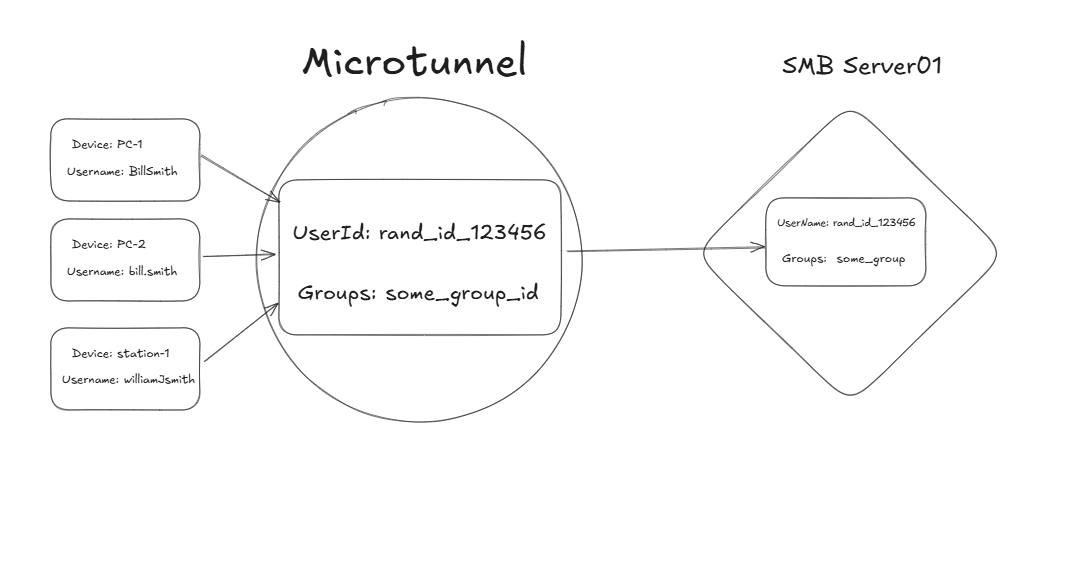
- Each MicroTunnel user is associated with a managed user account on servers.
- Each MicroTunnel user is associated with local user account(s) on workstation(s).
- This lets a single person (e.g., "Bill Smith") use different local usernames across devices while retaining the same access to server resources.
Get Started | Pricing | Book a Call | Feedback | MicroTunnel Public Roadmap