Getting Started
MicroTunnel makes it easy to manage access to organization resources like line-of-business (LOB) apps and SMB shares. Follow these steps to get your first organization live.
Video Overview
1) Sign up and create an organization
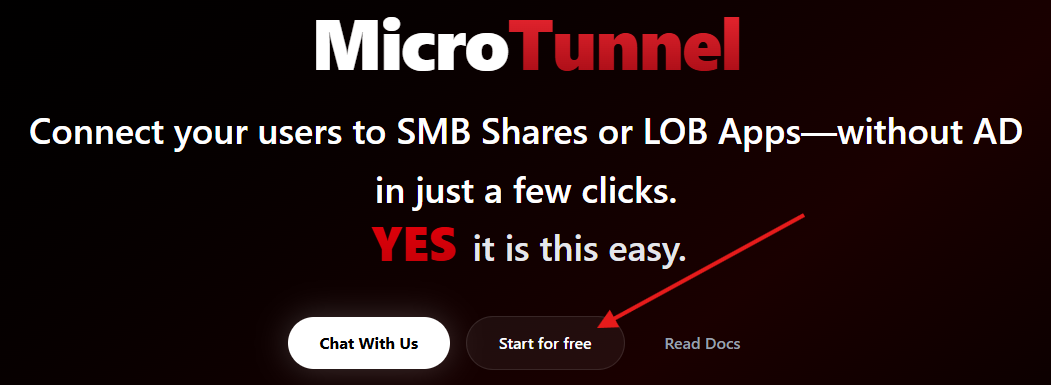
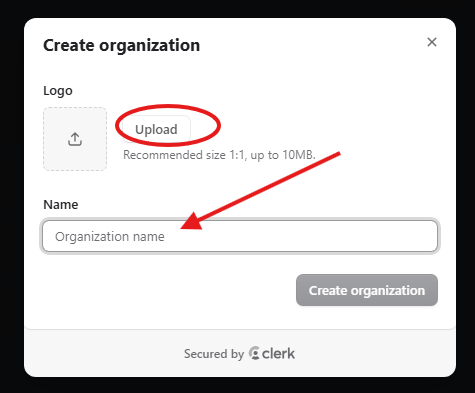
- Create your first organization by clicking "+ Create Organization."
- You can upload a logo too.
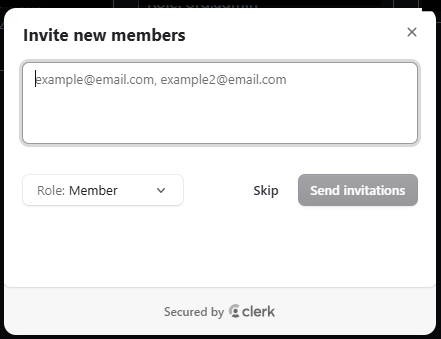
2) Invite your team
- It doesn't cost extra.
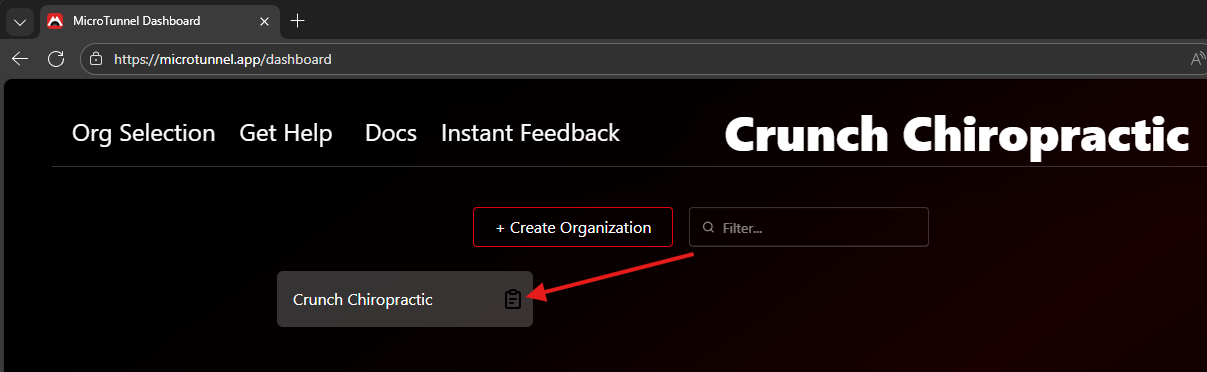
3) Obtain your Organization ID
You can find this by clicking the "Copy" icon in your organizations list or on the Organization Home page.
4) Install the runners
Install the runner that matches the device role:
- Server runner: Install on any servers hosting LOB apps, file shares, or printers (including any Windows PC acting as a file server).
- Workstation runner: Install on user endpoints (desktops, laptops, etc.).
- You can download the installer manually here.
- You can deploy both runners on one device if it serves both roles. (This counts as two devices for billing.)
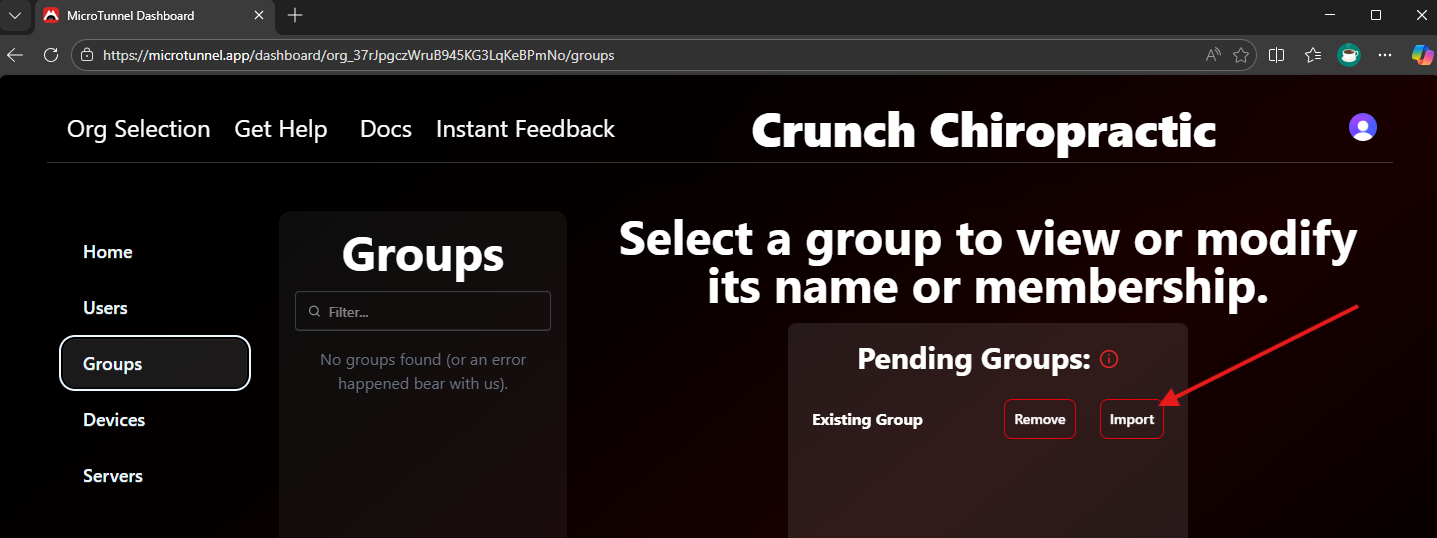
5) Import groups from your server
- In the Servers tab, open your server.
- Click "Import Groups."
- Groups import within a minute.
- On the Groups tab, available groups appear on the right.
Notes:
- You can manage server-imported and MicroTunnel-created groups together.
- Local users (not aliased in MicroTunnel) who were members of imported groups remain intact to minimize disruption unless you perform the flush action on the server.
- If you choose not to import a group into MicroTunnel, click "Remove" to exclude it. (You can use "Import Groups" on the server details page to restart the import process.)
- Warning: Deleting a group imported into MicroTunnel also deletes the group on the server(s), removing access for non-managed group members.
6) Add users to groups as devices check in
- As Workstation runners come online, users appear in the Dashboard under Users in an adoptable state.
- Activate users from the Users tab, or import during device adoption and activate afterward in the Users panel.
7) You're done
- That's it—MicroTunnel is deployed.
- Learn more about features and functionality under Features.
Troubleshooting
- Device not showing up: Ensure the runner is attached to the correct organization and the user is signed in to Windows.
- Group import failed: Verify MicroTunnel was installed with administrative privileges on the server.
- User can't access a share/app: Check group membership, confirm the target server appears under Devices and is healthy, and ensure the group has the necessary share and NTFS permissions.
Don't forget
Your first month is free—no commitment. Cancel anytime with one click.
Get Started | Pricing | Book a Call | Feedback | MicroTunnel Public Roadmap